

Most people working in B2B companies who run their sales pipeline in Excel didn’t pick Excel themselves. They inherited it. Accounting set up the spreadsheet, sales started typing into the same kind of file and three years later there are six .xlsx files with “FINAL” in the name and nobody knows which one is current. This post covers the best Excel CRM alternatives for sales teams, what to switch to based on your team type and how to migrate without losing the data you actually need.
Excel fails sales teams once files get emailed around and follow-ups live in Outlook instead of a visual pipeline. The fix is a dedicated CRM. Solo founders and small B2B teams should use Fluid CRM or Pipedrive. Marketing-heavy teams should use HubSpot. Enterprise teams should use Salesforce.
Why Excel Fails for Sales Teams (Differently Than Google Sheets)
Both Excel and Google Sheets fail at sales tracking, but the failure modes are different and most articles lump them together.
Many B2B sales teams using Excel are running the desktop version, not Microsoft 365 cloud Excel. The master pipeline lives on one person’s laptop as a .xlsx file, gets emailed around as attachments and ends up forked into versions nobody can reconcile.
Sheets has the opposite problem. The file is always available, but it’s one of 30 tabs in someone’s browser and never gets opened, let alone kept in good hygiene. Excel breaks through ownership chaos and sheets breaks through invisibility or multi-person edit mistakes.
For sales teams, the Excel pattern is specifically painful because it inherits the accounting team’s habits. In my 3+ years handling lead generation at my outbound agency Fenixtal across 50+ B2B clients, the pattern showed up most in older companies. Construction firms, compliance agencies, e-learning companies and so forth. Their finance team and organization as a whole uses Excel so the sales team uses it too. I’ve seen this same pattern in marketing agencies as well.
Conversations and lead notes get dropped into Excel by default, and the master file lives on whoever’s laptop set it up first. That’s a horrible way to do sales, which should be fast and crystal clear. That’s why I always recommended Fluid CRM for the ones still using Excel.
Here’s the comparison side by side:
| Aspect | Excel failure mode | Google Sheets failure mode | What a CRM does instead |
|---|---|---|---|
| File access | Locked to one machine, emailed as attachments | Locked to a browser tab nobody opens | Web app accessible from any device, always synced |
| Version control | “v2_FINAL_actually_final.xlsx” chaos | Edit history nobody checks | Single source of truth with activity history |
| Follow-up reminders | Lives in Outlook, disconnected from the deal | Lives nowhere or as commens, gets forgotten | Easy and visual reminders attached to the deal itself |
| Visibility | One person owns the file | The tab is never the active one | Pipeline view loads when you open the app |
| Scaling | Clarity breaks at 100+ rows or shared use | Clarity breaks when data lives on multiple tabs | Built to handle thousands of deals |
The deeper failure is the same in both cases. Spreadsheets track rows and that’s a difficult way to track sales. They don’t track what happens next. For the broader case for switching from Sheets, the logic is similar but the friction patterns are different. This post focuses on the Excel-specific ones.
5 Signs Your Excel Pipeline Is Costing You Deals
Most articles list vague signs like “scalability concerns” or “data fragmentation.” which is useless. Here are five specific signals you can check in 30 seconds, all of which mean Excel is actively losing you money.
1. You have multiple .xlsx files with “v2” or “FINAL” in the name
Open your Downloads folder right now. Search for “deals,” “pipeline,” or “leads.” If more than one .xlsx files show up, you have a version control problem. Even worse, if any of them have “v2,” “v3,” “FINAL,” or “FINAL_actually” in the name, the team has already given up on the master file. Deals are being tracked in parallel and someone is going to fall through the gap.
2. The master file lives on one person’s laptop
If the sales pipeline is on a SharePoint folder or a shared drive, that’s bad but recoverable. If it’s on someone’s local C: drive and gets emailed when others need it, the file dies the day that person quits, gets sick or upgrades their machine. I’ve seen this happen at a construction company I worked with at Fenixtal. The owner’s daughter ran sales out of an Excel file on her personal laptop and the leads we provided were tracked like a third thought.
3. You’re emailing the file around to teammates
Search your Sent folder for the .xlsx filename. If you sent it to a colleague in the last seven days, you’re using email as your sync mechanism. Every time someone opens an emailed file, edits it and sends it back, you’ve forked the pipeline. The next person to open the original doesn’t see the edits. Multiply this across a team of three over a quarter and the data is unrecoverable.
4. Formulas reference cells in other workbooks
If your pipeline file pulls data from an inventory file, a contacts file or a separate forecasting workbook, you’ve built an unstable system held together with cell references that break the moment a file gets renamed or moved. VBA macros make it worse. They run on one machine, fail silently on another and nobody on the team can debug them. A real CRM replaces all of this with relational data the system handles automatically.
5. Deals live in cells but follow-ups live in Outlook reminders
This is the most common signal and the most expensive one. The pipeline file tracks deal stages. But the follow-ups for those deals get scheduled as Outlook reminders, calendar events, sticky notes or that one folder in Outlook called “Follow up” with 100 unread emails marked for follow-up two weeks ago. The deal data and the action data live in different systems that don’t talk. When a reminder fires, you have to alt-tab to the spreadsheet to remember what the deal was about. Half the time you don’t bother and the deal goes cold. This is like pushing a boulder uphill. It doesn’t need to be this messy, time-consuming and annoying.
Why Most “Excel Alternative” Lists Recommend the Wrong Tools
Search “Excel alternative” right now and the top results recommend LibreOffice Calc, WPS Office, Zoho Sheets, Google Sheets, Airtable and Smartsheet. For sales teams, every one of those recommendations is horrible.
LibreOffice, WPS and Zoho Sheets are spreadsheets. Switching from Excel to another spreadsheet because Excel is bad at sales tracking is like switching from a flat tire to a different flat tire. The problem isn’t the brand of spreadsheet, it’s that spreadsheets weren’t built for sales pipelines. They track rows of data, not what happens next, what happened before, when a follow-up is due, who owns the conversation or what stage the deal is in.
Airtable and Smartsheet are no-code databases. They’re not CRMs. Yes you can build a CRM in Airtable the way you can build a house out of LEGO. Technically possible, structurally questionable and you’ll spend more time maintaining the build than running sales. Sales teams need a calm tool with built-in pipeline stages, follow-up reminders deal history and contact relationships. That’s a CRM, not a no-code app.
Switching from Excel to another spreadsheet or to a database tool solves nothing for sales teams. The fix is leaving spreadsheets entirely and when you do, you wish you had done it years ago.
The Best Excel CRM Alternatives for Sales Teams
Here’s the breakdown by team type. If you’re coming from Excel, pick the option that matches your situation, not the one with the biggest brand.
Solo founder or freelancer running Excel: Fluid or Folk
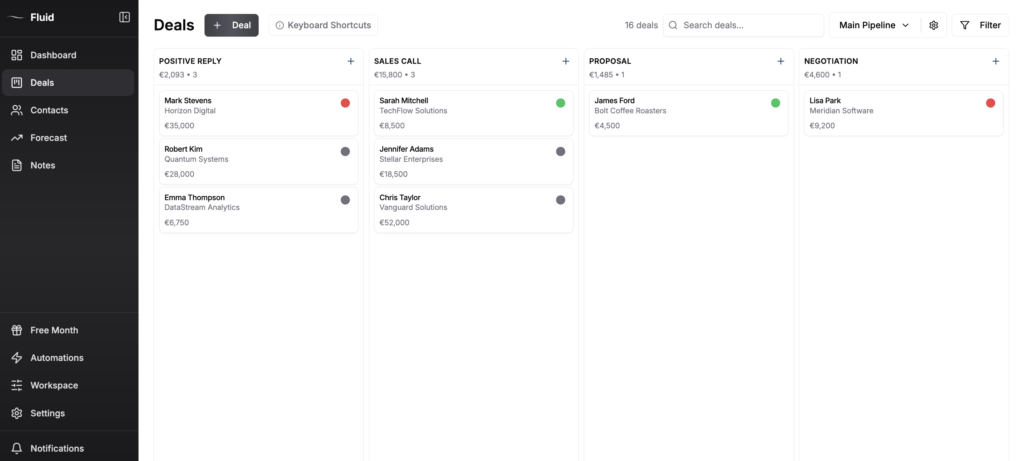
Fluid CRM is the right pick if you want a clear visual pipeline, follow-up reminders and a tool you can set up in under five minutes for 16€/month. It’s the easiest and fastest to use but it doesn’t have native LinkedIn integrations or marketing automations. For a deeper comparison against the other small-team options, see best CRM for small B2B sales pipelines. The pricing is also set and there are no upgrade traps.
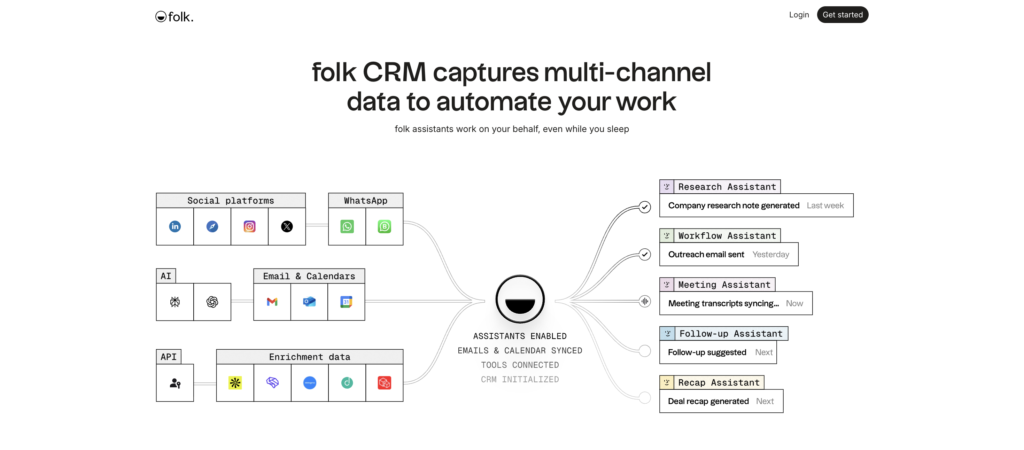
Folk is the right pick if your sales process is heavily relationship-driven and you want native LinkedIn and Gmail integrations baked in. The tradeoff: Folk is more contact-centric, Fluid is more pipeline-centric. Most small sales teams using Excel need a simple pipeline structure first and contact enrichment second, which is why I’d default to Fluid here.
Small B2B sales team (2-10 people): Fluid or Pipedrive
Fluid CRM handles small teams with shared pipelines, multiple users and the same flat 16€/month per user pricing.
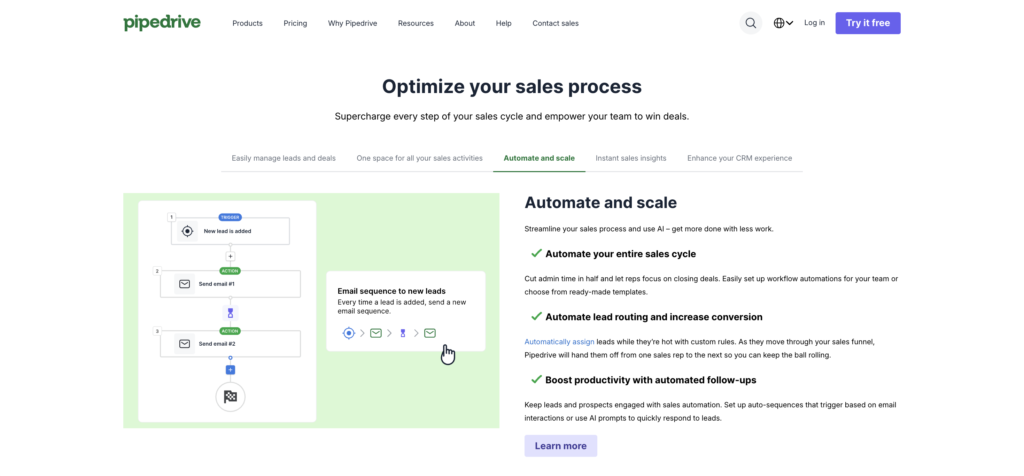
Pipedrive is the right call if you need built-in email sequencing inside the CRM and don’t mind paying 2-5x more per seat. For most teams under 10 people coming from Excel, Pipedrive is overkill and the price scales painfully as you add reps or need more features. Full side-by-side breakdown in Fluid CRM vs Pipedrive.
A small IT consultancy I onboarded specializing in industrial systems work had been running their sales pipeline in Excel for years before switching to Fluid. Low deal volume, high deal value and no need for marketing automation. They didn’t need Pipedrive. They needed structure that’s easy to follow and fast reminders, which is what most Excel refugees need.
If you’re coming from Google Sheets, see the alternatives by team-type breakdown here.
Marketing-heavy team coming from Excel: HubSpot
HubSpot is the right call if you actually need marketing automation. Most teams who think they do, don’t. If your sales team is sending one-to-one outbound emails, running a few campaigns and tracking deals, you’re not a sophisticated marketing-automation buyer. You’re a CRM buyer. HubSpot’s free tier is fine for a few months but the pricing climbs fast the moment you need any feature beyond the basics. Buy HubSpot when you have a marketing team running nurture sequences, behavioral triggers and attribution reporting. Buy a calm CRM when you have a sales team trying to track deals.
For most small B2B teams looking at HubSpot, there are simpler options worth considering first.
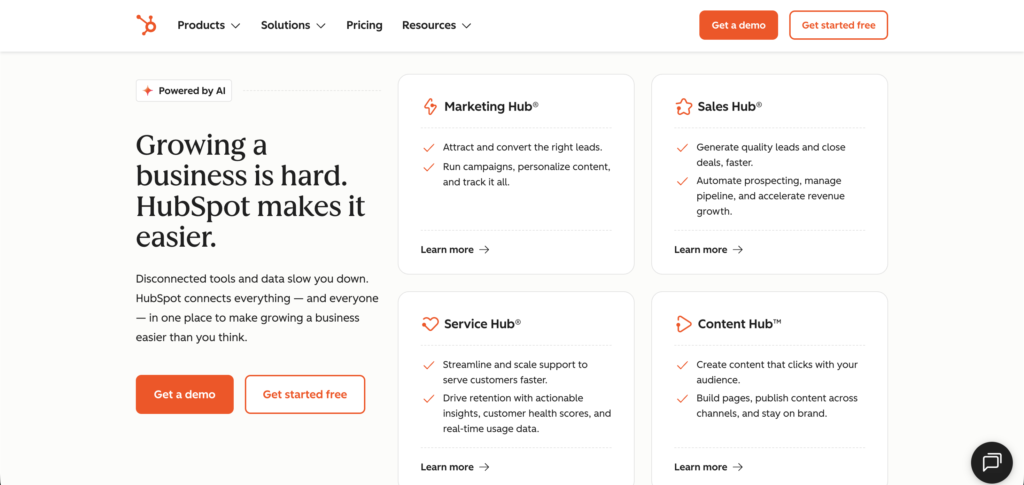
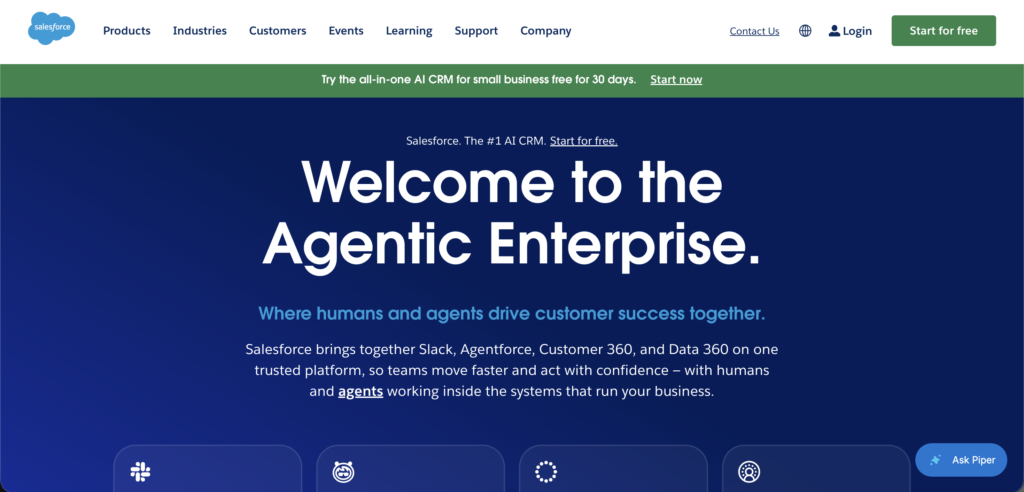
Enterprise teams on legacy Excel pipelines: Salesforce or HubSpot Enterprise
This is the one segment where heavy-tier CRMs make sense, but massive enterprise migrations from Excel take 6+ months and most fail. The failure mode is always the same. The implementation team designs the system around what the spreadsheet looked like instead of what the sales process actually needs. The reps push back, adoption stalls and six months later you’re paying 200€/seat for a glorified Excel replica nobody uses.
If your company is genuinely enterprise scale (50+ sales reps, multi-region, complex compliance), Salesforce or HubSpot Enterprise is definitely the right call. If you’re a 15-person team telling yourself you need enterprise features because Excel feels chaotic, you don’t. You need a easy to use CRM that works and most importantly, gets used.
Another consultant I worked with ran his pipeline across multiple spreadsheets and a tangle of follow-up tools. The fix wasn’t a bigger system. It was a smaller, simpler one that did pipeline tracking properly and nothing else.
If you’re a consultant who hate admin work, this post goes deeper on the solution.
How to Migrate from Excel to a CRM Without Losing Data
Excel migration is harder than Sheets migration because Excel files often contain formulas, macros and cross-workbook references that don’t translate. Here’s how to do it without breaking your pipeline mid-quarter.
Step 1: Clean the data before exporting
Before you export anything, open the master Excel file and do three hygiene passes. Delete dead rows where the deal was lost or closed more than 12 months ago, merge duplicate contacts where the same person appears under two names or two email addresses (many crms like Fluid do this automatically on import) and fix the column headers so they match standard CRM fields like Company, Contact Name, Email, Stage and Deal Value. If you skip this step, you import the mess into the CRM and the new system feels exactly as broken as the old one within a week.
Step 2: Map your columns to CRM fields
Most CRMs let you map spreadsheet columns to their internal fields during import. Take 10 minutes to do this carefully because the mapping decisions you make here become the structure of your pipeline going forward. Common mappings: Excel “Status” maps to CRM “Stage,” Excel “Next Action” maps to CRM “Follow-up Date,” Excel “Notes” maps to the CRM’s note field on the deal record. If your Excel file has columns the CRM doesn’t have built-in fields for (like custom industry tags or referral sources), most CRMs let you create custom fields, including Fluid.
Step 3: Decide what to leave behind
This is the step that scares people. You will not be moving your VBA macros, your pivot tables or your cross-workbook formulas. None of that exists in a CRM and none of it needs to. The macros automated steps the CRM handles natively, the pivot tables become pipeline views, and the cross-workbook formulas become relational data the system manages automatically. Make a list of every Excel feature you used regularly and check whether the CRM has a native equivalent. In 90% of cases it does, and the few cases it doesn’t are usually features you only thought you needed.
Step 4: Import and verify
Most CRMs accept .csv imports, so save your cleaned Excel file as .csv first. Run the import on a small batch (10-20 deals) and verify the data landed correctly before importing the rest. Check the deal stages, contact links, deal values and the follow-up dates. If anything looks off, fix the mapping and reimport. Once the test batch looks right, import the full file. Total time for most small B2B teams is between 2 and 4 hours of focused work, which is less than most people think.
Frequently Asked Questions
No. Excel is a spreadsheet that some teams use to track sales because they don’t have a CRM. It can hold contact data and deal stages in cells, but it has no built-in pipeline, view follow-up reminders tied to deals, relational data between contacts and companies and no activity history. A CRM has all of those by default.
You can build something that looks like a CRM in Excel using formulas, conditional formatting, dropdowns and macros. People do it all the time. The problem is maintenance and clarity. Every time the sales process changes, the spreadsheet needs to be rebuilt, and every time someone touches a formula by accident, things break silently. The build cost is low but the ongoing cost in lost deals and lost time is high. A 15-20€/month CRM replaces it with no maintenance work.
Excel tracks rows of data. A CRM tracks deals as objects with stages, contacts, follow-ups, notes and history attached to each one. In Excel, the deal is a row of cells. In a CRM, the deal is a record you can move through stages, set reminders on, attach files to and link to the contact and company it belongs to. The difference shows up most when you need to follow up. Excel doesn’t remind you. A CRM does.
For a solo founder or small team with one master file, plan 2-4 hours for a clean migration. The bulk of the time is data cleanup before import, not the import itself. For mid-size teams with multiple Excel files and 500+ contacts, plan a day. For enterprise migrations with multiple workbooks, custom macros and cross-functional dependencies, the timeline runs 6+ months because the bottleneck is process redesign, not technical migration.
Probably not, but the reason is different from what you’d find in most articles. The real issue isn’t whether Airtable is “powerful enough” for sales. It is. The real issue is that switching from Excel to Airtable solves the wrong problem. Your Excel pain isn’t that the spreadsheet lacks features. It’s that the file is locked to one machine, that VBA macros nobody understands break randomly and that you’ve been emailing “v3_FINAL.xlsx” around for six months. Airtable fixes the file-ownership problem because it’s web-based, but you’ll still be building your sales process from scratch on top of a generic database. A CRM ships with the sales process already built in. Skip the database step.
Conclusion
Excel works fine for the first year or two of running a small business. After that it leaks deals, loses follow-ups, wastes your time and creates version chaos that costs more than the cost of switching. The fix isn’t another spreadsheet or a no-code database pretending to be a CRM. It’s a real calm CRM built for the way deals actually move.
If your Excel pipeline has turned into a folder full of files with “FINAL” in the name, Fluid CRM replaces it with a clear visual pipeline you can set up in five minutes and run for 16€/month flat. No upgrade traps, migration consultants or six-month rollouts. Start free for 7 days, no credit card needed.