
Bring your sales data into Fluid CRM from any CSV. Two ways to import, depending on where you are: drop in a contact list to start fresh or migrate your active deals from HubSpot, Pipedrive or any other CRM or source with one upload. Deal import supports custom fields. No technical setup or data loss.
Start your free Fluid CRM trial here.
Prefer to watch? Here’s the full import walkthrough in under 5 minutes.
Two Ways to Import: Which One is for You?
Fluid has two import paths and choosing the right one saves you time.
Contact Import
Choose this if you have a list of people or companies you haven’t started selling to yet. Most common scenario: you’re moving from a spreadsheet, you have a prospect list you want in your CRM and you’ll create deals later from those contacts.
This is the simpler path. Upload a CSV with names, emails, companies and any other contact-level data. Field mapping only.
Pick contact import if:
- You’re coming from Google Sheets, Excel or Notion
- You have a list of target accounts or prospects with no active conversations yet
- You prefer the traditional CRM flow: upload contacts and companies first, create deals from them later
Deal Import
Choose this if you have active sales opportunities you need to keep working. Most common scenario: you’re migrating from HubSpot, Pipedrive or another CRM and you want your deals visible in your Fluid pipeline immediately, not lost in the move.
When you import deals, Fluid automatically creates the contact person and contact company linked to each deal. No need to import contacts first and then match them up.
Pick deal import if:
- You’re migrating from HubSpot, Pipedrive, Close, Salesforce or any other CRM
- You have active deals with values and pipeline stages you need to preserve
- You want a working pipeline from day one
- You prefer the Fluid way: deals first, contacts auto-created in the background
Note that deal import supports custom fields. Be sure to create your custom fields first inside Fluid CRM > Workspace > Pipeline and match them in your import CSV. Further instructions on custom field import under Deal import section.
How to Import Contacts Into Fluid CRM
Importing contacts into Fluid CRM is the simpler option and takes only few minutes.
Step 1: Choose contact import
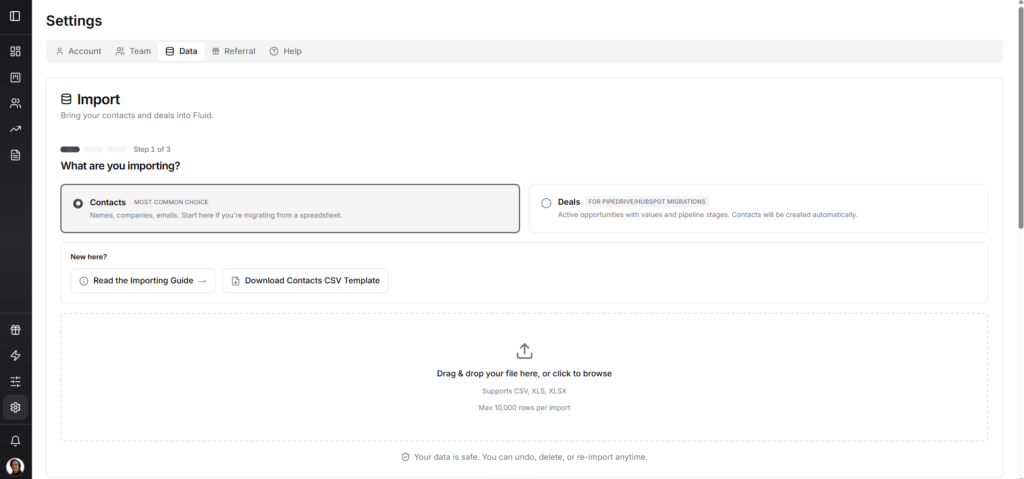
In Fluid, go to Settings → Data → Import. Pick Contacts as your import type. Drag and drop your CSV file or click to browse. Fluid accepts CSV, XLS and XLSX up to 10,000 rows per import.
When you have contacts selected, you can also download the Fluid CRM contact import template, which helps you map your data and import faster.
Step 2: Map your fields
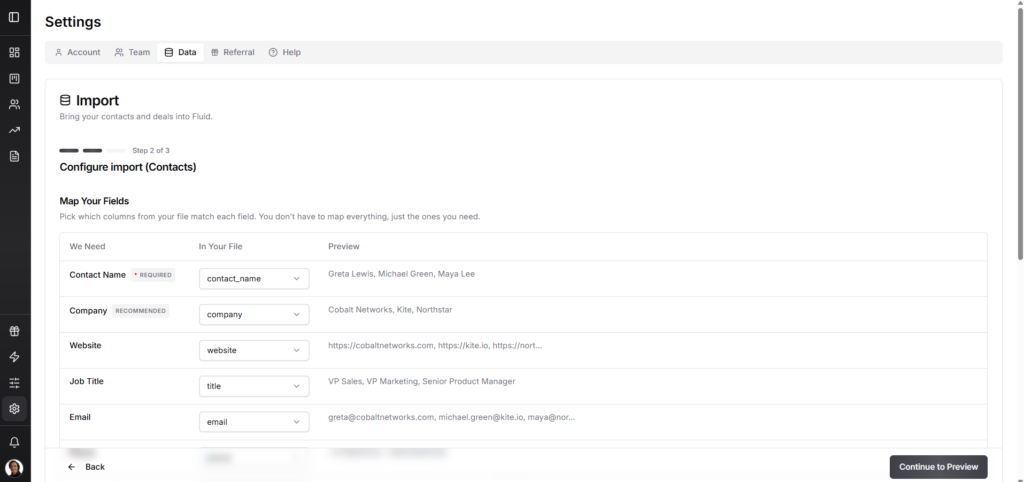
Fluid auto-detects your CSV columns and suggests matches to Fluid fields (Contact Name, Company, Email, Phone, Job Title, Website, Social media, your custom fields and more).
Review the suggested mappings and adjust any that look off. Skip fields you don’t need. The preview column on the right shows you exactly what your data will look like once imported.
When you have confirmed your field mappings, press “Continue to Preview” button in the bottom right corner.
Step 3: Preview and import
The final screen shows how many contacts are ready to import and how many fields are mapped. Click Import and your contacts appear in Fluid’s contact page immediately.
Note: Contact import doesn’t accept deal value, expected close date, or next action. These belong to deals, not contacts. If your CSV has those fields, run a Deal import instead (see next section). Fluid creates both the contact and the deal in one upload.
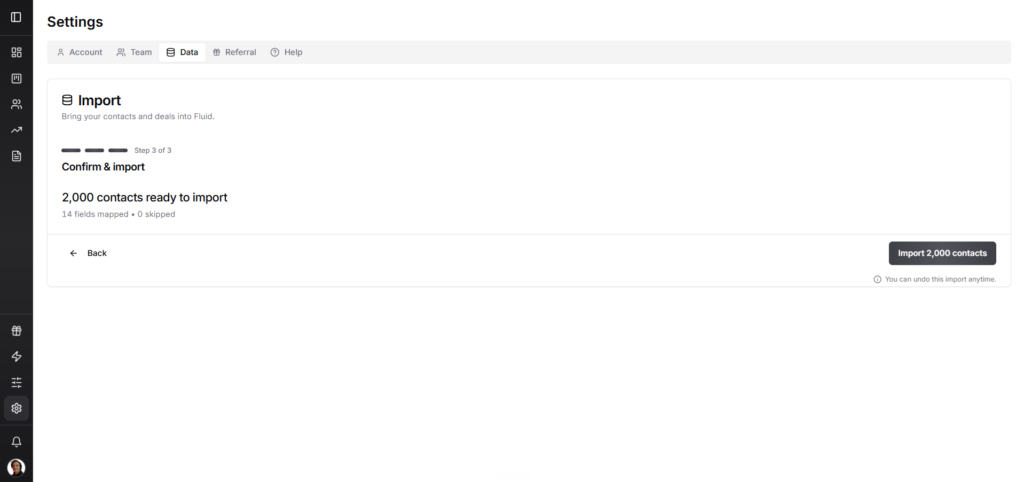
You can undo any import within 48 hours if something looks wrong.

How to Import Deals Into Fluid CRM
For deal imports, there’s one extra step: telling Fluid which pipeline these deals belong to and matching your old stages to your Fluid stages.
Step 1: Replicate your pipeline stages first (recommended)
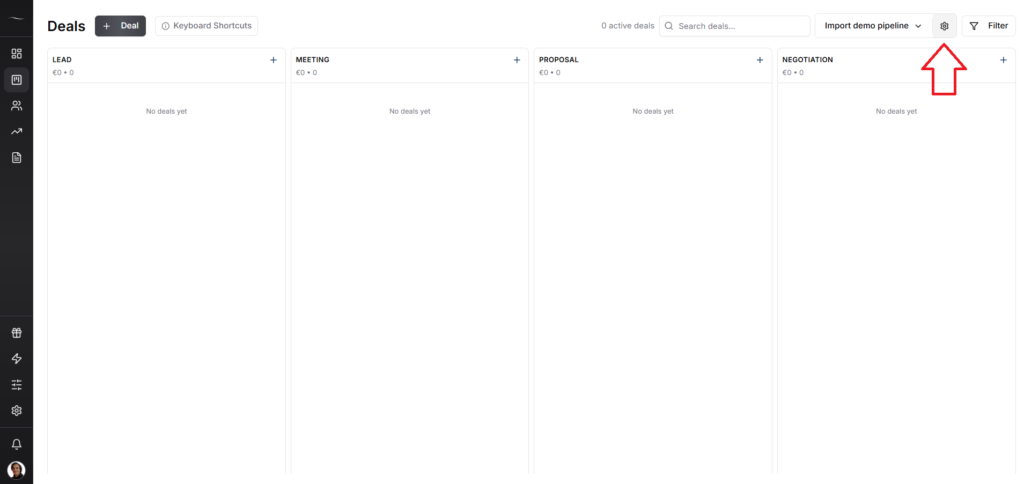
Before you import, set up your Fluid CRM pipeline to match your old CRM’s stage names. If your HubSpot pipeline has “Qualified, Demo Booked, Proposal Sent and Negotiation” create those same stage names in Fluid first.
This single step makes stage mapping automatic. Skip it and you’ll have to manually map each stage during import, which works but takes slightly longer.
To edit your pipeline stages: Pipelines → Edit pipeline.
Step 2: Create custom deal fields first (if you have them)
If your deal CSV has fields beyond Fluid’s defaults (contact name, company name, job title, contact info, etc.), create them in Fluid before importing. Custom fields are deal-only at the moment, so this step doesn’t apply to contact imports.
Go to Workspace → Pipeline → choose the right pipeline → Deal Fields. Click Add Custom Field, give it the same name as your CSV column header, and pick the field type:
- Text for names, descriptions, statuses
- Number for amounts, scores, counts
- Link for URLs and social profiles
- Date for any date field besides expected close
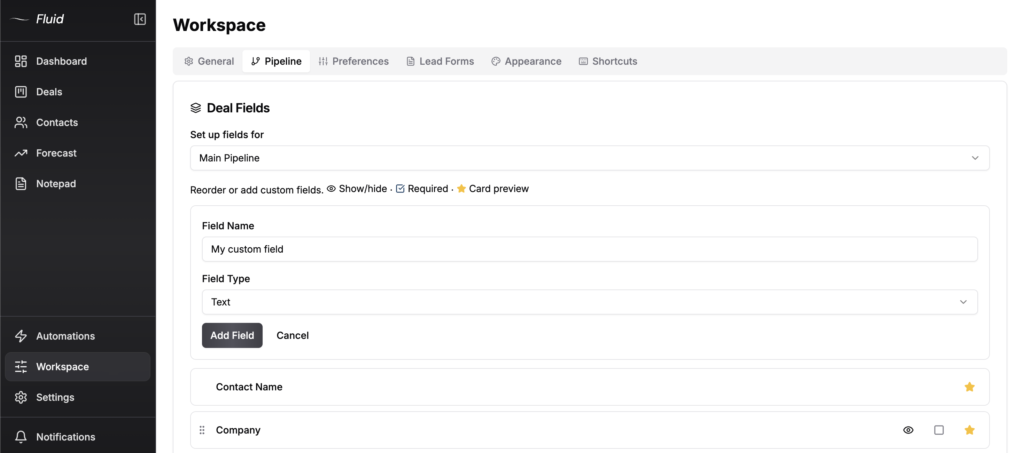
Match the field names in your CSV exactly. In the field mapping step later, your custom fields show up at the end of the list, ready to map.
Step 3: Choose deal import and upload your CSV
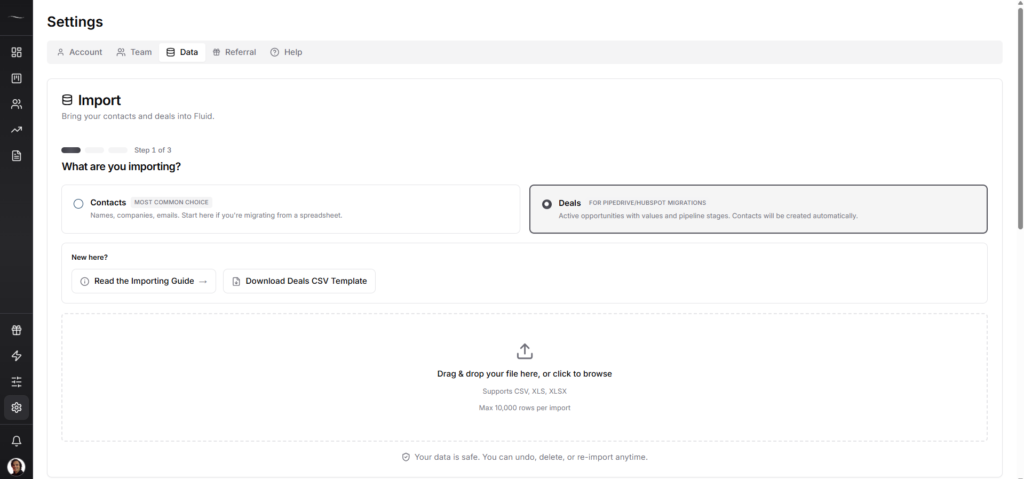
In Settings → Data → Import, pick Deals as your import type. Drop your CSV (10,000 rows max).
When you have deals selected, you can also download the Fluid CRM deals import template, which helps you map your data and import faster.
Step 4: Pick the pipeline
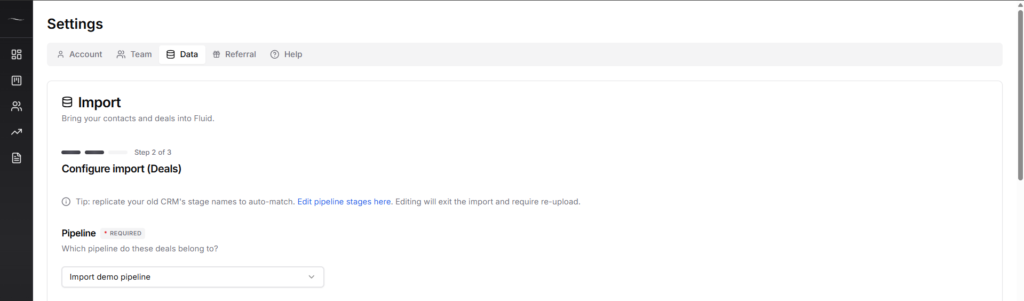
Choose which Fluid pipeline these deals belong to. If you have multiple pipelines (e.g. Sales, Onboarding, Renewals), this tells Fluid where the deals should live.
Also if you forgot to edit your pipeline stages to match your previous CRM’s stages, you’re reminded to do so here as well (not necessary).
Step 5: Map your stages
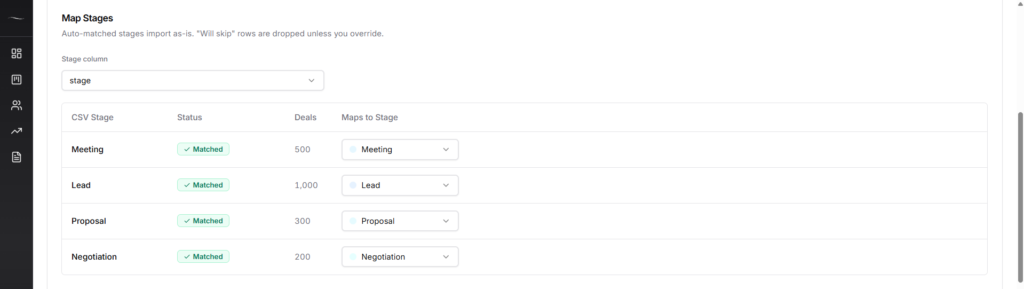
Fluid shows every unique stage name from your CSV and lets you map each one to a Fluid pipeline stage. If you replicated your old stage names in step 1, this is automatic. Otherwise, drop down each CSV stage and pick its Fluid equivalent.
Stages you don’t want to import can be set to Skip and those deals won’t be imported.
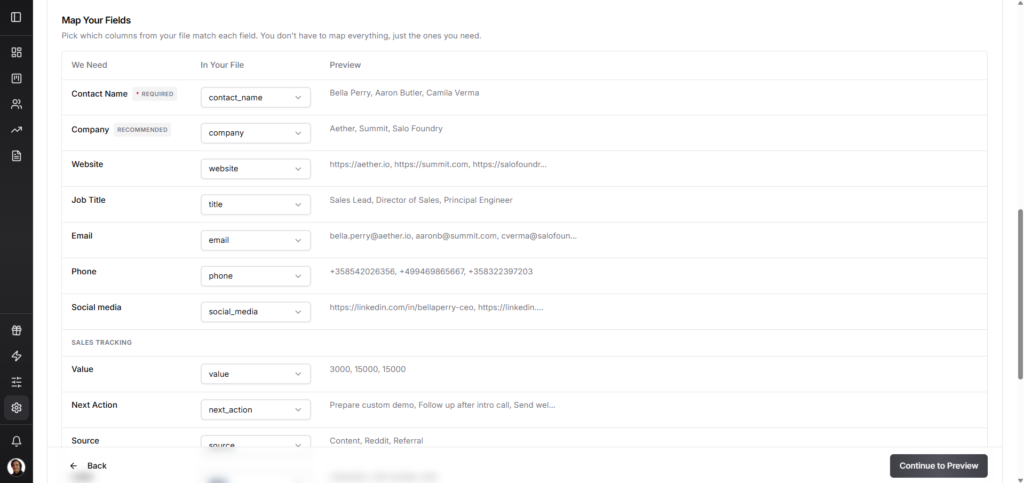
Step 6: Map your fields
Same flow as contact import. Fluid auto-detects columns and suggests mappings. You’ll map contact-level fields (Contact Name, Company, Email, Phone) and deal-level fields (Deal Value, Currency, Deal Stage, Expected Close Date and any custom fields you’ve added).
Fluid automatically creates the contact person and contact company for each deal, so you don’t need to import contacts separately.
If you created custom fields in step 2 and have them in your CSV, this is where you can map them.
When you have confirmed your field mappings, press “Continue to Preview” button in the bottom right corner.
Step 7: Preview and import
The final screen shows how many deals are ready, how many fields are mapped and how many rows will be skipped (if any). Click Import and your deals populate your pipeline immediately.
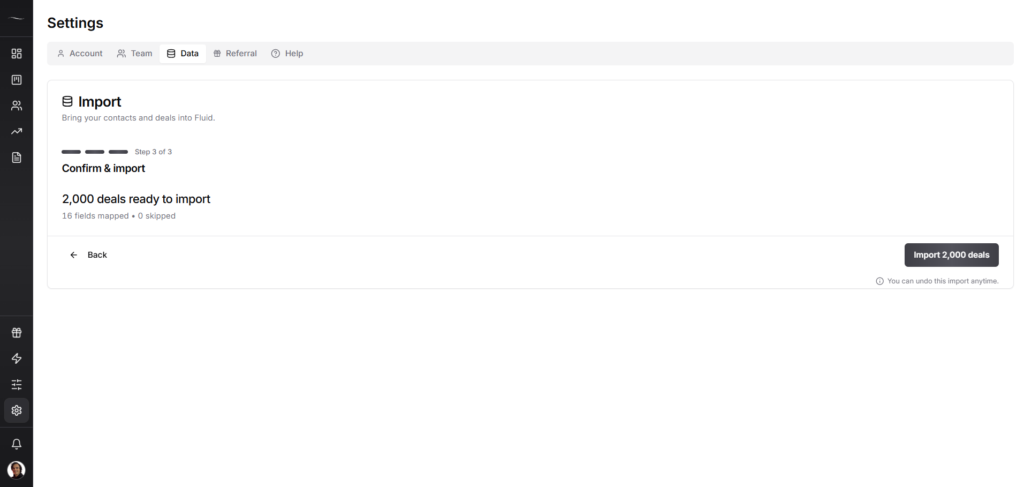
You can also undo your import within 48 hours if needed.

Migrating from Another CRM?
If you’re coming from HubSpot, Pipedrive, Close, Salesforce or any other CRM, the workflow is the same:
- Export your deals from your old CRM as CSV (every major CRM has this feature in the export/data settings)
- Set up your Fluid pipeline to match your old stages
- Download the Fluid deals CSV template and map your data based on on the column names (or map them manually in field mapping step)
- Run a deal import in Fluid
- Done
You don’t need to migrate contacts separately. Fluid creates them automatically from your deal data.
Common migrations:
From HubSpot: Export deals from Sales → Deals → Actions → Export. Choose CSV. Include deal name, amount, stage, close date, contact properties and any custom properties you’ve added. If you’re still deciding whether to leave HubSpot, see Fluid CRM vs HubSpot.
From Pipedrive: Export deals from … (More) → Export data → Deals. Select all fields you want preserved. Pipedrive’s stage names and pipeline structure map cleanly to Fluid. Full side-by-side at Fluid CRM vs Pipedrive.
From Close.com or Salesforce: Export deals/opportunities as CSV from the data export settings. Same import flow in Fluid.
For any CRM that lets you export to CSV, the Fluid import works. If your old CRM has a unique export format, save it as standard CSV first.
Migrating from a Spreadsheet?
Most teams that come to Fluid CRM graduate from Google Sheets, Excel or Notion. The import flow is identical:
From Google Sheets: Open your sheet → File → Download → Comma-separated values (.csv)
From Excel: File → Save As → CSV (Comma delimited)
From Notion: Export your database as CSV from the database menu
Then run contact import (if it’s a prospect list) or deal import (if it’s an active sales tracker with values and stages).
A few tips for clean spreadsheet imports:
- If one column has mixed data types (e.g. text and numbers in the same column), clean it before exporting
- Make sure your first row contains column headers (Name, Email, Company, Stage, Value, etc.)
- Remove merged cells, empty rows and any formatting that’s not raw data
Frequently Asked Questions
Most imports take under 5 minutes from start to finish. The actual upload runs in seconds. Most of the time is reviewing field and stage mappings.
Fluid handles up to 10,000 rows per import. For larger datasets, split into multiple imports.
You choose one import type per upload. If you have an active sales pipeline with deal values, stages, reminders and close dates, choose Deal import. Fluid creates the contacts automatically from your deal data. If you have a prospect list with no active deals yet, choose Contact import. Contact import doesn’t accept deal value, expected close date or next action. These fields belong to deals only. If your contact CSV has these columns, run a Deal import instead.
Custom fields are deal-only at the moment, so this works for deal imports, not contact imports. Before importing, create the custom field in Workspace → Pipeline → Deal Fields and match its name to your CSV column header. The import wizard then maps it automatically. Text, number, link and date are supported.
Yes. During deal import, Fluid shows every unique stage name from your CSV and lets you map each to a Fluid pipeline stage. Replicate your old stage names in Fluid first and the mapping becomes automatic.
Fluid detects duplicate contacts by email address. You’ll see them flagged in the preview step so you can decide whether to skip, merge or update existing records. You can also merge duplicates in the contacts tab.
Yes. Every import creates a batch record and you can roll back within 48 hours.
No. Drag, drop, click. If you can export a CSV, you can import into Fluid CRM.
Text, number, date, dropdown, checkbox, email, phone, URL, social media and custom fields. All standard CRM data types.
Yes, for deal imports. Custom fields live on deals, not contacts. Create matching custom fields in Fluid first under Workspace → Pipeline → Deal Fields, then map them during the import wizard. Text, number, link and date are supported.
All three. CSV, XLS and XLSX files are all accepted.
During deal import, Fluid CRM groups your CSV rows by stage and shows you exactly how many deals are coming in at each stage. You map each stage individually, so a CSV with deals across 5 different stages imports cleanly into your Fluid pipeline.
Coming from a spreadsheet? Fluid CRM is built as a simple CRM for teams leaving spreadsheets. Already using Fluid CRM and want to see how it stacks up against the alternatives? See best CRM for small B2B sales pipelines.